
Use Kittl Video
Turn designs, mockups, artboards, or Smartboards into short video clips with prompts, presets, model settings, and token guidance.
Kittl Video turns a design, photo, mockup, or plain text prompt into a short AI-generated video clip. Use it to bring static artwork to life, animate a product shot, or add motion to a mockup, right on your canvas or from your dashboard.
Before you start
Generating a video uses tokens from your plan. Cost depends on the model you pick, the clip's length, and whether you add audio, and it's shown before you generate. See Tokens in Kittl for details.
You can start a video from an open project on your canvas, or from AI Studio on your dashboard, without opening a project first.
Generate a video from your canvas
Click the AI icon in the bottom toolbar to open the AI input box.
Click the mode selector and choose Generate Video.
Optionally, click + to add one or more reference images from your uploads or past AI creations. How the AI uses them depends on whether Reference Mode or Frames to Video is selected, see step 5.
Describe the motion you want in the prompt box.
Choose a model, aspect ratio, duration, whether to include audio, and whether to use Reference Mode or Frames to Video. See the sections below for details.
Click the arrow button to generate, or press Enter.
A purple loading card appears in place of your clip while it generates.
Generate a video from AI Studio
Prefer to start without opening a project first, or want to browse examples before you write a prompt? Use AI Studio instead.
Click AI Studio in the left toolbar, then click the Video Generator tab at the top. You can also click + Create in the left toolbar and choose Create Video to jump straight there.
Optionally, click + to add one or more reference images from your uploads or past AI creations. How the AI uses them depends on whether Reference Mode or Frames to Video is selected, see step 4.
Describe the motion you want in the prompt box.
Choose a model, aspect ratio, duration, whether to include audio, and whether to use Reference Mode or Frames to Video.
Click the arrow button to generate.
Your result appears under the History tab. Browse the Discover tab first if you want inspiration or a ready-made example to remix.
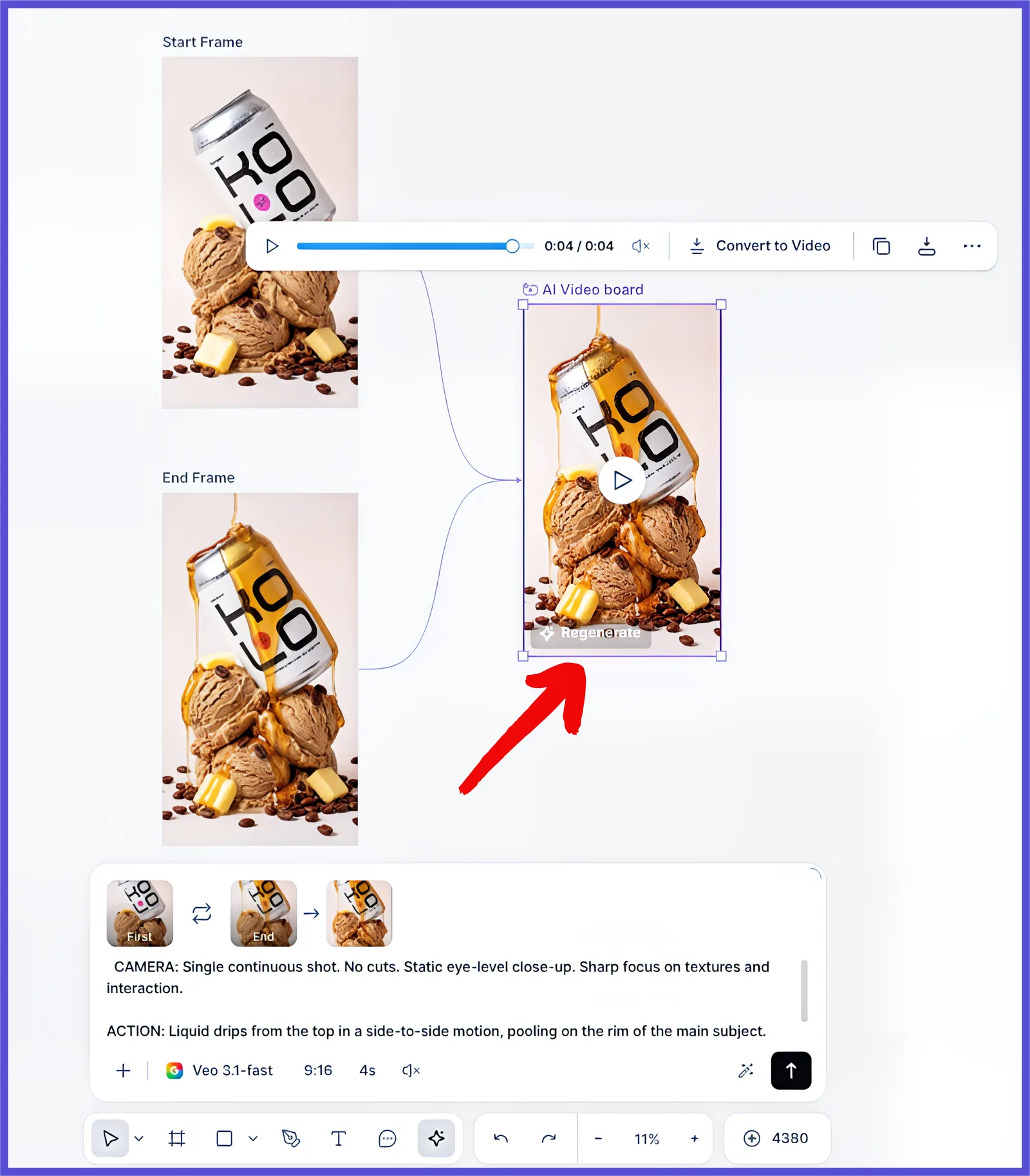
Add an AI video board
AI video board is connected to its inputs and prompt for easy regeneration.
Select a board, an artboard, an AI image board, or a mockup, and click the connector dot on its right edge.
Choose AI Video Board from the Add... menu.
Optionally, connect another board the same way to use as an end frame.
Write your prompt and choose your model, aspect ratio, duration, and audio.
Click the arrow button to generate. Your video appears as a tile on the board.
Reuse the same motion across changing inputs
Want to keep the same motion while your content updates, for example when you swap in a new product photo? Select the AI Video Board, hover over it, and click Regenerate. Your inputs update, while the prompt and motion direction stay consistent.
Write a good prompt
Video prompts describe a scene in motion. When you write one, you're not painting a picture, you're giving direction. A good video prompt covers three things: what moves, how it moves, and the overall vibe. If you want motion that feels more like graphic design than cinematic footage, mention typography or layout motion specifically rather than camera movement.
Do:
Camera: Slow dolly in, shallow depth of field. Action: Condensation drips down the glass. Setting: Gin bottle on a marble countertop.
Don't:
"A beautiful, stunning gin bottle on a nice countertop with warm vibes and gorgeous lighting in a fancy bar setting."
Same subject, same scene, but the first prompt tells the model exactly what to do. The second leaves everything up to guesswork.
Other ways to start your prompt
The same + menu has two more options if you don't want to write a prompt from scratch:
Prompt presets opens a library of ready-made prompts, each shown with an example video, like Hand Pick or Monumental Orbit. Click one to apply it to your prompt.
Prompt builder opens a guided panel with optional categories, Style, Perspective, Effects, Colors, Environment, and Lighting, each showing visual options on a live preview. Pick what you want, then click Add to your prompt to append it, or click Surprise me for a random pick.
Enhance your prompt
Click the magic wand icon on the prompt box to expand a short prompt into a more detailed one before you generate.
Choose a model
Click the model name (for example, Veo 3.1 Fast) to open the model picker. Kittl offers several models built for different needs. Each option lists a short description of what it's best at, along with its token cost per second of video.
Set aspect ratio, duration, and audio
You can fine-tune a few settings before you generate. Which aspect ratios, durations, and audio options are available depends on the model you choose.
Aspect ratio: Pick a frame shape for your clip, like 16:9 or 9:16.
Duration: Choose how long the clip should be, typically from three to thirty seconds.
Audio: Turn on with audio to generate sound alongside the motion, shown with its own per-second cost, or leave it on no audio for no extra cost.
Token usage for video
Video generation costs more than image generation. Total cost depends on the model, duration, and whether you add audio, and it's always shown before you generate. For example, a four-second clip with Veo 3.1 Fast and audio can cost up to around 120 tokens. See Tokens in Kittl for more on how token costs work.
Do your whole design flow in Kittl
Video generation works best as the final step in a design you built entirely in Kittl, with no exporting to another tool along the way.
Design your layout: type, vectors, and composition.
Use a mockup to place the design in a real scene.
Create a start and end frame, for example with Remix or an AI Image Board, to lock in the final look.
Generate Video to bring it to life, right on the same canvas.
This gives you a smooth flow from design, to polish, to final frame, to motion, with no tool switching or handoffs.
Work with your result
On the canvas, a generated video becomes a movable tile that you can resize, rotate, and reposition like any other element, with styling options such as opacity, shadow, and border available in the right panel. Export it as an MP4 from the canvas like any other element. From AI Studio, hover a result under History to reveal Edit and Download buttons. Click Edit to add it to an existing project or start a new one, or click Download to choose a format and size.
Common questions
What's the difference between Generate Video and Agentic AI?
Generate Video gives you full control: you pick the model, frames, and settings yourself. Agentic AI works from a plain description and picks the format and details for you, and it can produce a video as well as an image. Use Generate Video when you know the look you want, and Agentic AI when you'd rather describe the idea and let it handle the rest.
What can I do with AI Video Generation?
Design and animate assets for ads, promos, product visuals, and brand content — all in the same canvas
Use Start & end frames for more guided motion**.**
Use Smartboards to generate videos and regenerate them as your inputs change — while keeping the same motion/prompt for consistent results.
Export MP4s directly from Kittl like any other asset.
Are my generated videos private?
Only on a paid plan, and only if you choose to keep them private. On a Free plan, every video you generate is public under Kittl's licensing terms and appears in the Explore tab of the AI Gallery.
How do I find the prompt I used for a video?
There are two ways. If the video is still on your canvas, click it to see its Prompt Details, along with the model used, in the right panel. Otherwise, open AI Gallery from the left toolbar, go to My Creations, and click the ••• menu on the video to see its prompt, model, and style.
Related articles