
Use Kittl Flows
Build AI image boards in Kittl Flows, connect prompts and outputs, and reuse them across designs and projects.
Kittl Flows let you chain artboards, mockups, AI Image Boards, and AI Video Boards together into a connected pipeline, so each step builds on the one before it. Use it to take a flat design all the way to a styled mockup and a video, without leaving the canvas.
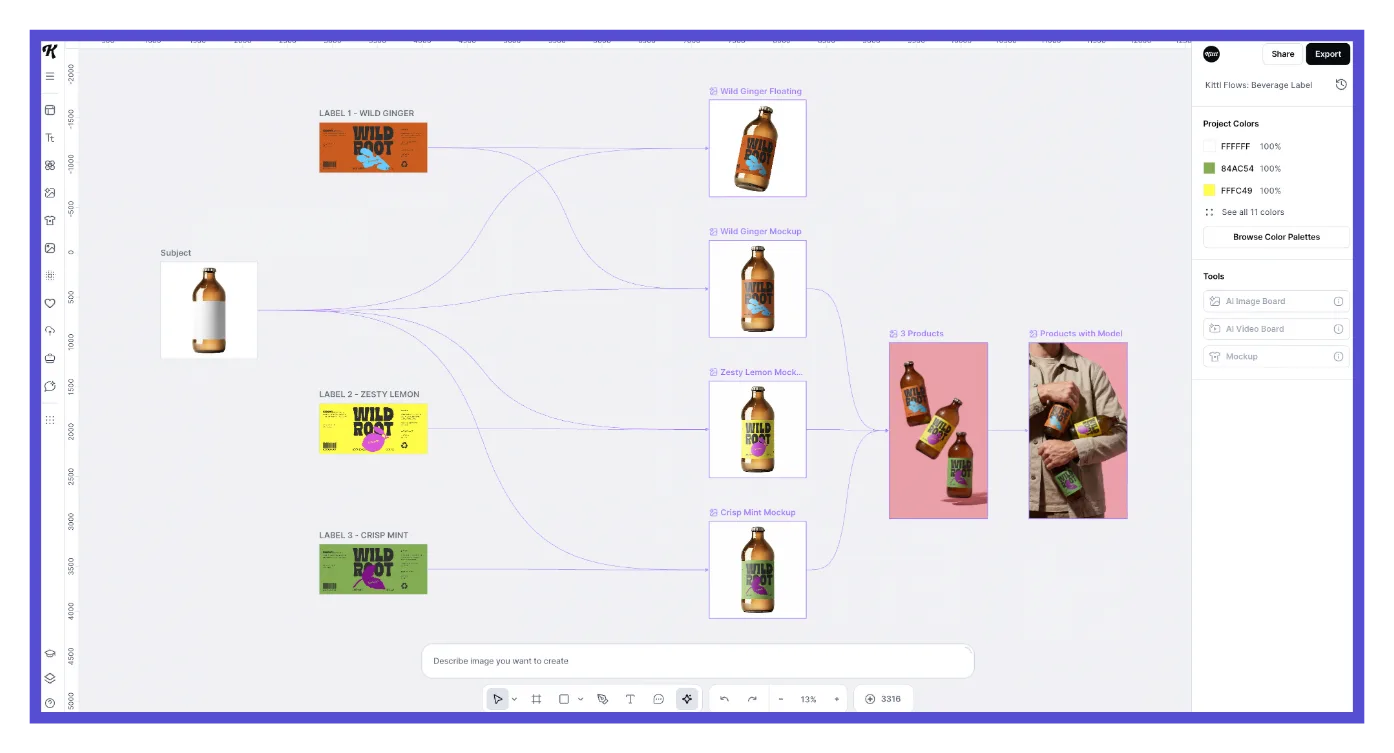
Start your Flow
Select an artboard that already has a design on it.
In the contextual toolbar above your selection, or under Tools in the right panel, click AI Image Board, AI Video Board, or Mockup.
The new board appears next to your artboard, connected with an arrow. This link is what carries your design's context from one step to the next, and it's also the reference the new board uses when it generates.
Add a prompt and generate
Adding an AI Image Board or AI Video Board opens a prompt box at the bottom of the canvas. Whichever board it's connected to is the reference it generates from, so check that connection before you generate.
Write your prompt.
Choose a model and aspect ratio. For a video, also select the duration and add audio if the model supports audio. You can also click Enhance Prompt to expand a short prompt into more detail.
Click the arrow button to generate.
The board shows a loading state while it generates, then displays the result in place.
Keep the chain going
You're not limited to one board per step.
Hover over the right edge of any board, whether it's an artboard, mockup, or AI Image Board and click the connector dot that appears.
Choose AI Image Board, AI Video Board, or Mockup from the Add... menu.
Repeat from any board in your flow to branch out further or build out a longer pipeline. Each new board uses the board it's connected to as its reference, so make sure it's linked to the right source before you generate.
What you can do with a flow
Regenerate: select a board and click Regenerate to run its prompt again against its current inputs. This is useful when you've swapped in a new source image and want the same treatment applied automatically.
Convert to Image or Convert to Video: turn any board into a flat, standalone asset you can edit like a regular image or video, independent of the flow that created it.
Upscale and Reframe: available under Tools for image boards, so you can increase resolution or adjust the crop without leaving the canvas.
Run several boards at once: select multiple boards and generate them together.
Set a board as your project thumbnail: right-click a board to access this option.
Kittl Flows are for fast iteration, bold exploration, and saving time on the mundane. It’s great for prototyping concepts or generating assets. It gives you the flexibility to experiment, without starting from scratch.
Troubleshooting
Why is my board showing a different design or artwork than I expected?
It's probably connected to a different board than you think. Follow the arrow leading into it back to its source to see which board it's actually using as a reference.
My AI Image Board or AI Video Board is stuck on loading
Generation time varies, so give it a moment first. If it's taking longer than usual, check My Creations inside the AI Gallery. Sometimes a board still shows as loading on the canvas even though the result already finished generating and was saved.
I added a mockup, but it didn't pick up my design
This usually happens when the mockup library was opened from the Mockups icon in the left toolbar instead of from an existing board's connector dot. A blank placeholder artboard gets added on the canvas, connected to the mockup instead of your existing design. Add your design to that new placeholder artboard, or delete it and add the mockup again from your original artboard's connector dot instead.
I don't see a purple connector dot when I click on my design
The connector dot only appears on an artboard. Make sure your design is placed inside an artboard.
Common questions
Can I download the mockup, image, or video from Kittl Flows?
Yes. Select the board and click the download icon in its contextual toolbar to open Quick Export, choose a format, and save it straight to your device. If you'd rather skip the download and keep working with the result inside your project instead, click Convert to Image or Convert to Video to turn the board into a flattened asset with less friction than downloading it and adding it back in.
If I change the design on my source board, can I regenerate every board connected to it at once?
You can regenerate the boards directly connected to it right away. For boards further down the chain, wait until the board they're connected to finishes regenerating with the new design first, then regenerate that next board, and so on down the line.
Related articles