
Create mockups from your dashboard
Turn any design into a polished product mockup right from your dashboard, no editor required. Preview it across your mockup library, tweak the color, and download in a few clicks.
Mockups on dashboard turns any design into a realistic product mockup right from your Kittl dashboard, no project or editor required. Upload an image or select from your existing assets, preview it across the whole mockup library at once, fine-tune individual results, and download a finished visual in a few clicks.
Before you start
Have a design or image ready to upload, such as a logo, artwork, or product graphic.
Premium mockups require the Pro, Expert, or Max plan.
Open the mockup studio
From your dashboard, click Mockups in the left menu.
Browse by category, or type into the search bar to jump straight to what you need. Each category is organized into curated collections, click View all on any of them to see more.
Apply your design
Click Upload (or drag and drop a file) and choose the design or image you want to preview.
Your design is applied across the mockups in view, so you can compare how it looks on different products at once.
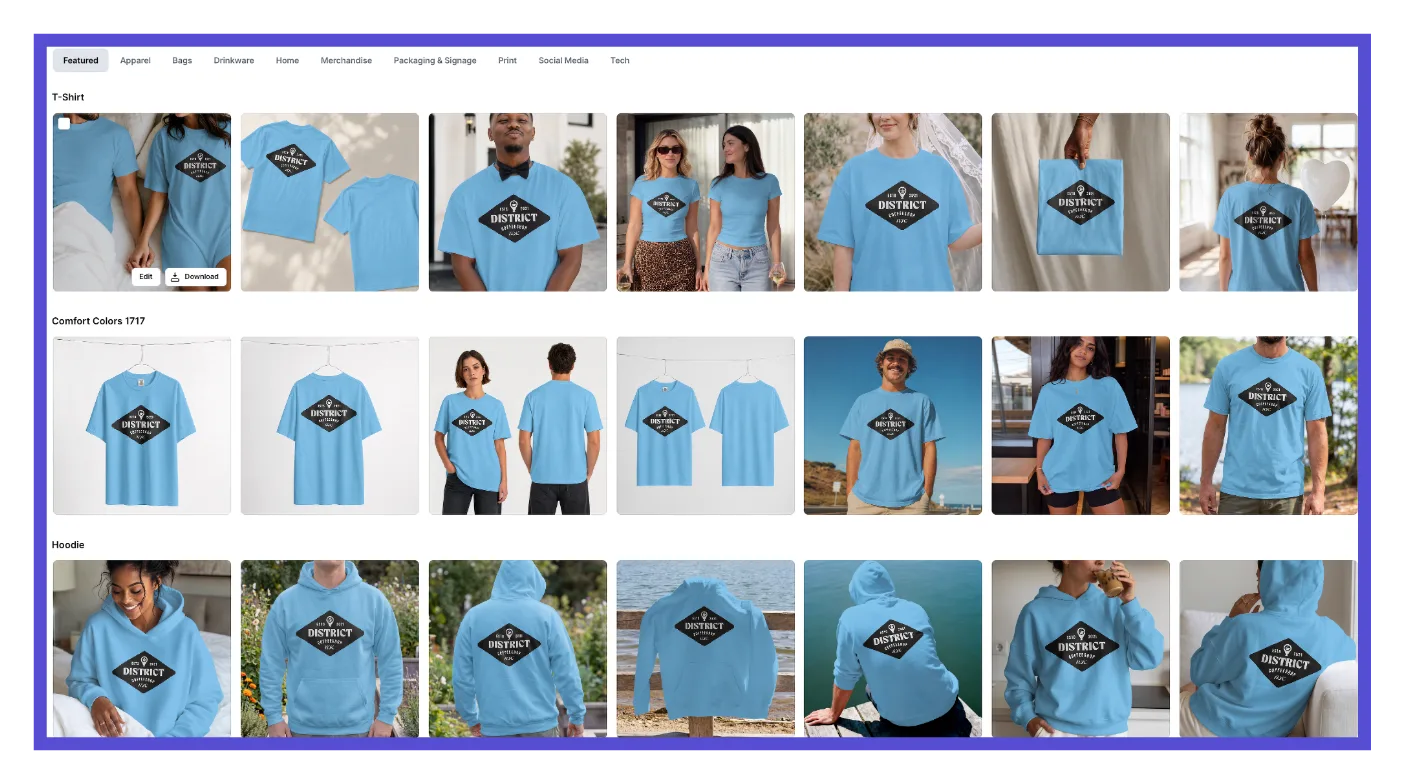
Adjust, replace, or remove a mockup
Hover over any mockup card to reveal quick Edit and Download buttons, or click the mockup itself to open the mockup modal.
Using the color picker, choose the mockup color of your choice.
Click Replace to swap in a different design, or Delete to remove it from your results.

Download or continue in the editor
You have two ways to finish up, depending on how much control you need.
Download directly: hover a mockup card and click Download, or select multiple mockups using their checkboxes and click Download once to save them all together.
Open in the editor: click Edit on a mockup card for quick edits like changing the mockup color and replacing or deleting the design, or Open in editor from the mockup modal or your selection, for advance editing.
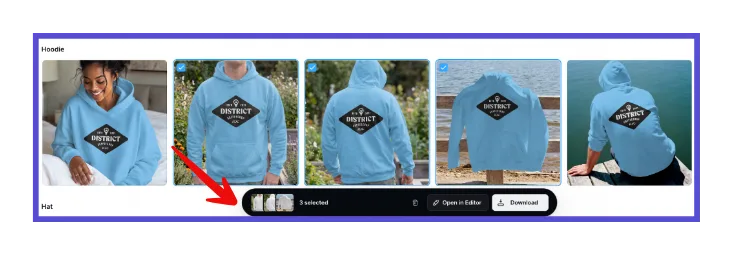
Expected outcome
Your design appears realistically applied to the mockup you chose, ready to download as a polished product visual or open in the editor for further customization.
Troubleshooting
I can't reposition my design inside the mockup.
Repositioning and background removal aren't available on the dashboard yet. Click Open in editor and use the full editor tools instead.
Nothing happens when I click Open in editor.
Your browser may be blocking the pop-up. Check your browser's pop-up blocker settings, allow pop-ups for Kittl, and try again.
Common questions
What do Replace and Delete do?
Replace swaps in a new design for that one mockup, without changing anything else you've applied. Delete removes that mockup from your current results, it doesn't delete the mockup from the mockup library.
Why can't I use every mockup?
Mockups marked as premium require the Pro, Expert, or Max plan. Selecting one prompts you to upgrade.
Can I download more than one mockup at once?
Yes. Select multiple mockups from the gallery, then click Download to save them all at once.
Related articles