
Use AI Erase & Fill
Remove part of an image with the eraser tool and let AI fill the selected area with a natural-looking background.
Erase & Fill removes part of an image and lets AI generate a natural-looking fill in its place, all in one brush stroke. Use it when you want to remove an object, a person, or any other unwanted detail from a photo and have the surrounding image extend naturally to cover the gap, without writing a prompt.
Before you start
Erase & Fill doesn't use tokens, but it's a paid feature, so it's not available on the Free plan. You'll need a Pro, Expert, or Max plan to use it.
Open Erase & Fill
There are two ways in.
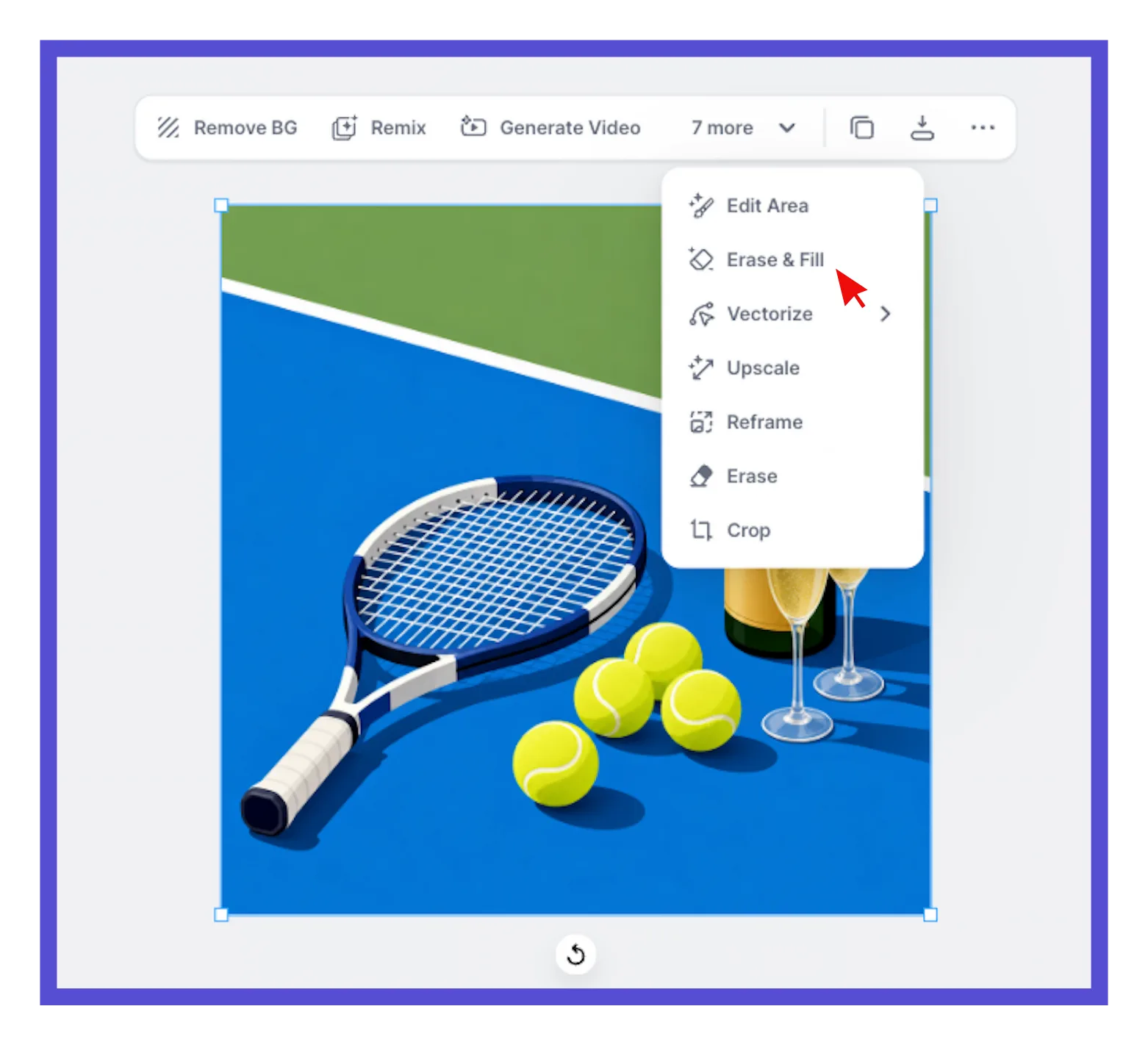
From the contextual toolbar Select an image on your canvas, open the more menu in the taskbar above it, and choose Erase & Fill.
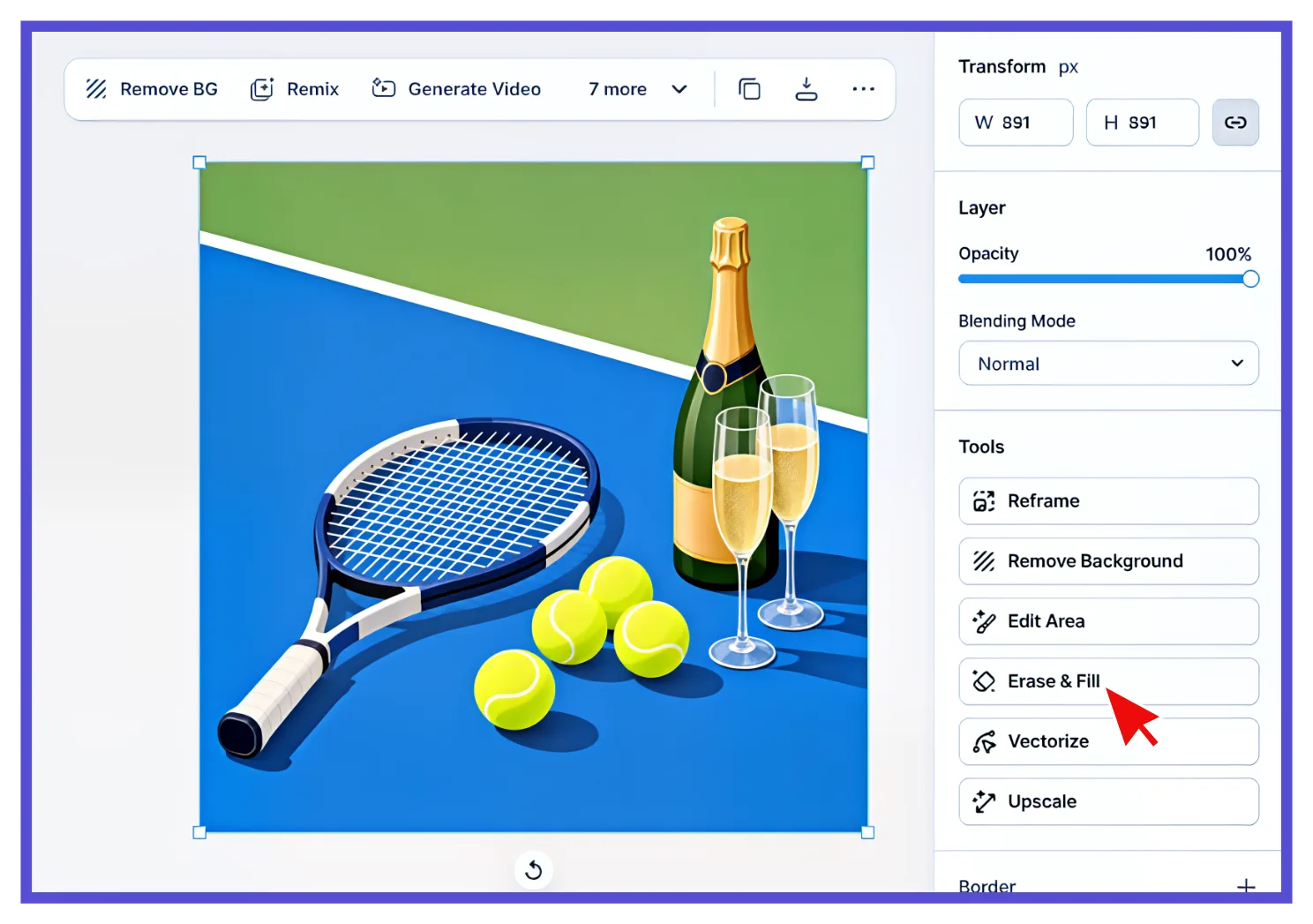
From the Tools panel With the image selected, choose Erase & Fill under Tools in the right panel.
Paint over what you want to remove
Use the Size slider in the right panel to set your brush size. A brush slightly larger than the object gives the AI more surrounding context to work with.
Paint over the part of the image you want to erase.
Release the brush. Generation starts automatically, and a Cancel button appears above the canvas while it processes.
You can paint over more than one area on the same image, one at a time. There's no prompt to write, the AI fills each erased area to match the style, color, and texture around it.
Expected outcome
Once generation finishes, the erased area is replaced with a new fill that blends into the rest of the image. Click Exit Edit Mode when you're done.
Troubleshooting
I see a warning that says "Large image detected, quality might be affected."
This shows up automatically on higher-resolution images. The tool still works, but results can look softer on very large images. Try the fill on a smaller version of the image, or use Edit Area instead if you need more control over the result.
The generation didn't fully remove what I painted over.
Try again with a slightly larger brush so the AI has more surrounding context, or erase the area in a couple of smaller strokes instead of one large one.
I don't see Erase & Fill option.
Make sure you've selected a single image first. Erase & Fill works on one image at a time, not on groups or artboards.
Why am I prompted to upgrade when I click Erase & Fill?
Erase & Fill is a paid feature, included on Pro, Expert, and Max. If you're on the Free plan, clicking it prompts you to upgrade.
Common questions
What's the difference between Erase & Fill and Edit Area?
Both use AI to generate new pixels, but they work differently. Erase & Fill doesn't need a prompt: it automatically fills the area you paint to match the surrounding image, doesn't use tokens, and is limited to paid plans. Edit Area needs a written prompt describing the change, costs tokens, is available on every plan including Free, and gives you more control over exactly what appears in that spot. Use Erase & Fill for a quick, natural-looking removal, and Edit Area when you want to describe a specific result, like adding or replacing something. See Use Edit Area for details.
What's the difference between Erase & Fill and Erase?
Erase removes pixels manually, but the area you paint turns white, so it leaves a visible gap behind. Erase & Fill removes pixels and generates a new fill for that area automatically, so there's no gap left behind. Use Erase if you just want to remove something and don't mind the blank area, and Erase & Fill when you want that area filled in instead.
Related articles